Recently we ran into issue where business quickly demanded name of VMs which were rebooted due to HA. There are few ways to do it. Outlining below 2 methods to do that. First method is via simple powercli script and second method is via VM uptime gathered from vcenter.
First method.
Every VM rebooted due to HA has an event generated against it. Below one liner code find that VM and output that result in csv file. Here, i am assuming you know how to run the powercli code. I am not going into that detail, just keeping it high level.
Get-VIEvent -Entity VM -MaxSamples 10000 -Start(Get-Date).AddDays(-1) -Type Warning | where {$_.FullFormattedMessage -match “vSphere HA restarted virtual machine”} | Select ObjectName,CreatedTime,FullFormattedMessage | sort CreatedTime -Descending | Export-Csv -Path “C:\impactedvmslist1.csv” -NoTypeInformation
Second Method:
This method is quick but may not give most accurate information depending upon your environment and cluster size. This involves looking at VMs uptime from vcenter which you can corelate with when that HA happened.
- Click on Cluster on which host failed and HA happened.
- Click on VMs tab.
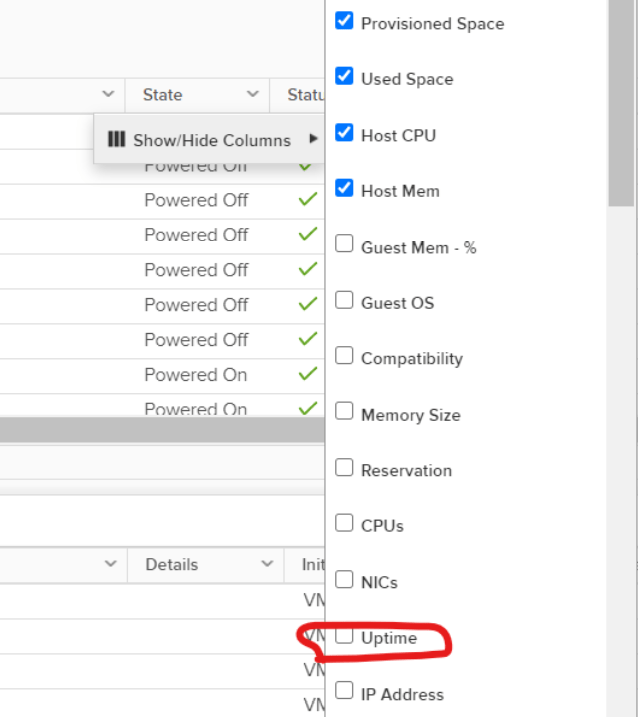
- If you don’t see uptime tab , then it is hidden.
- You can unhide(show) uptime tab as below.
 Virtualization blog