Often times we need to calculate VM growth rate over a period of time.There are many ways to do this and couple ways to do it in vrealize itself. Below are the steps.
- Open up vRealize operations manager. First we will start by creating a new view. Go to Dashboard – > View -> Create a new View.
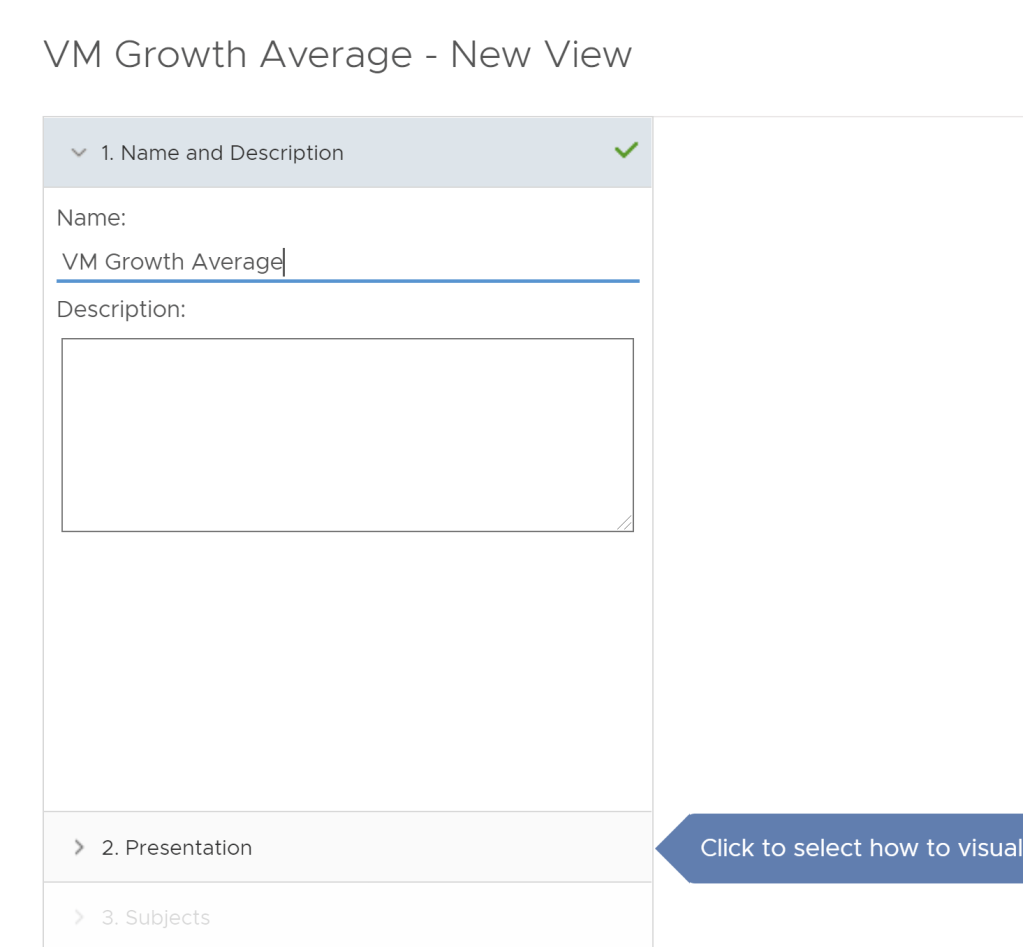
- Provide a name for your view.
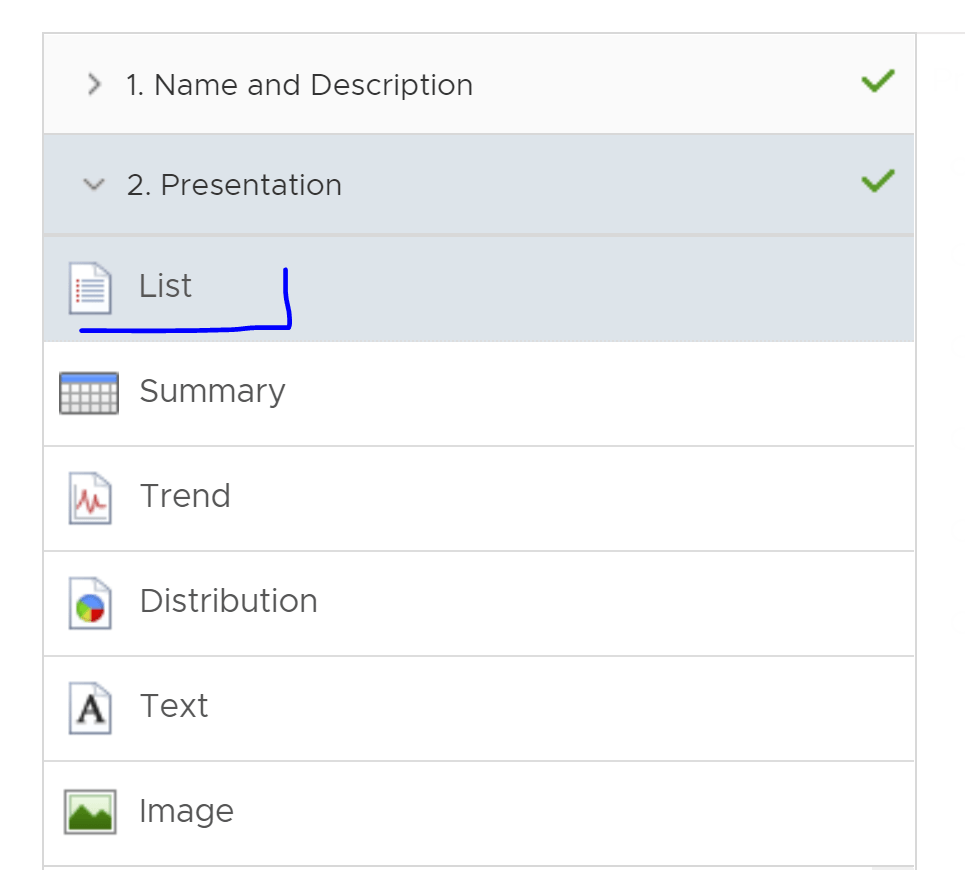
3. Under Presentation, select List
4. In Subjects, select vCenter Server under vCenter Adapter.
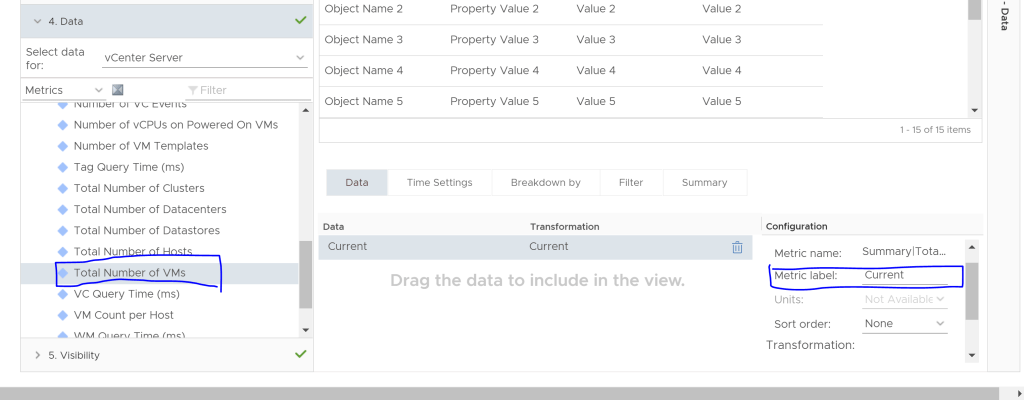
5. Under Data, select Total Number of VMs under Summary. Label Metric Label as Current.
6. Next , we will show how many VMs have been added over a period of 1 year. Add the same label ‘Total Number of VMs‘. Change the Metric label to 12 Month VM Growth. Change the transformation to Expression and type in expression formula (current-first).
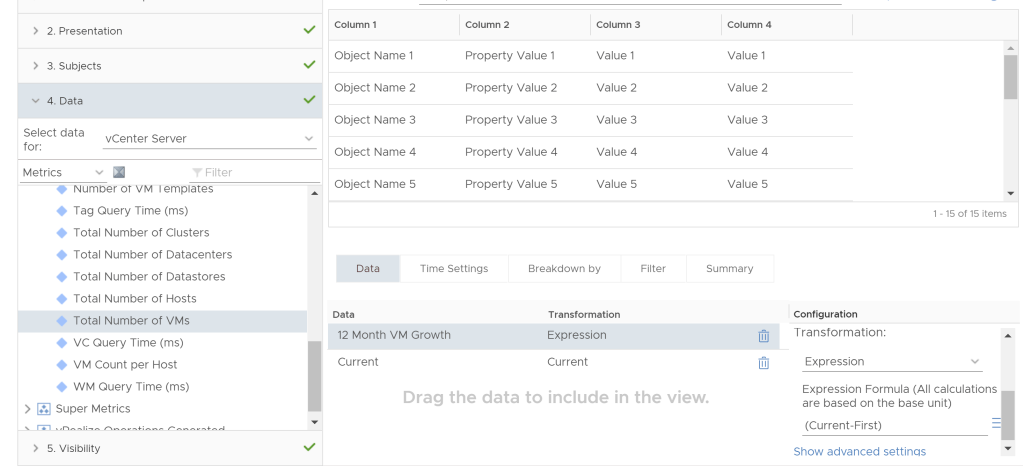
7. We will display Average VM growth per month over a period of 1 year. Add same label again ‘Total Number of VMs’ and this time change label to ‘Average VM Growth’. Change the transformation to Expression and type in expression formula (current-first)/12.
8. Since we want to see the data from last 1 year, under Time Settings , we will change the Relative date range to Last 1 year.
9. Save the view. View is now ready to be added as dashboard or Report.
 Virtualization blog